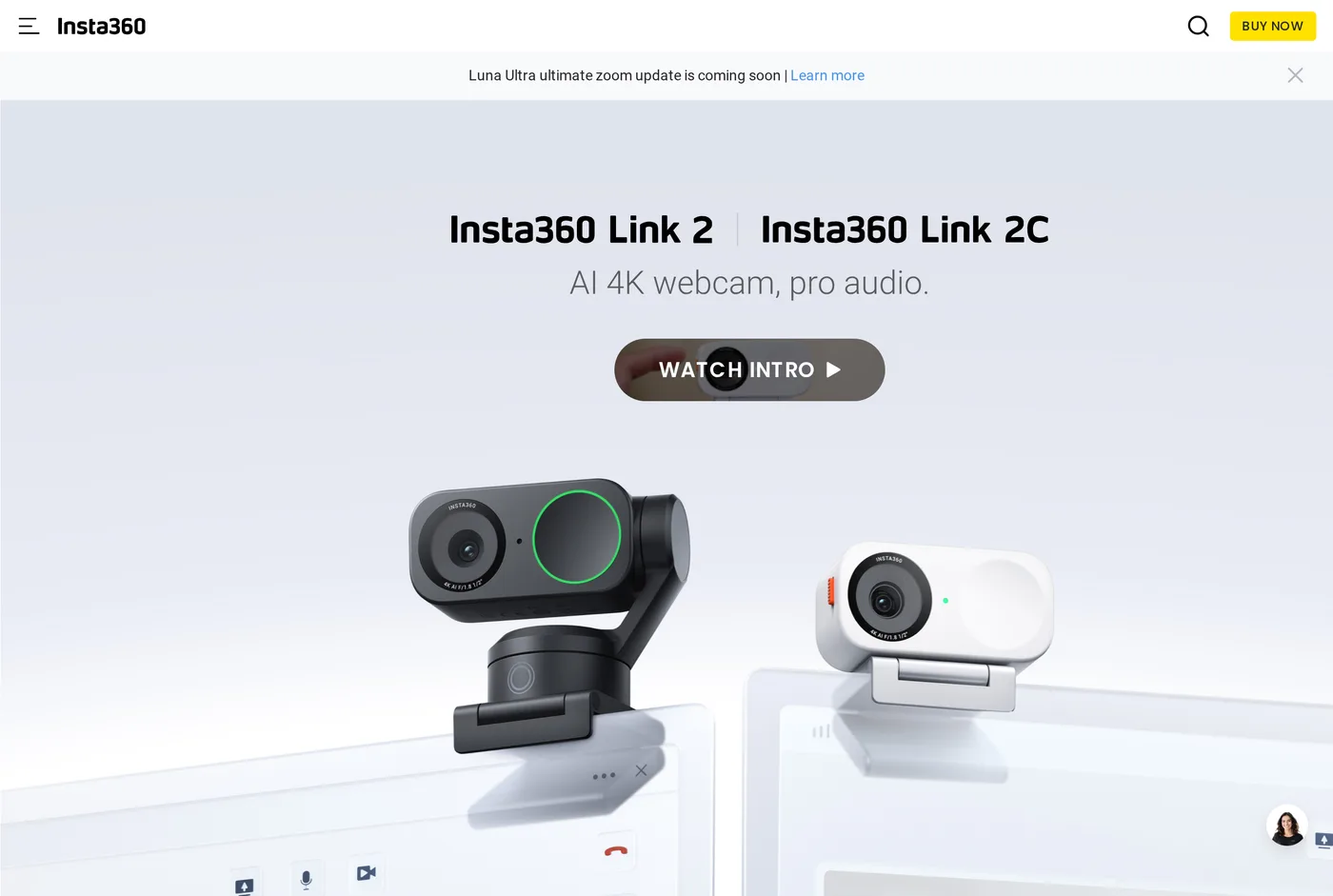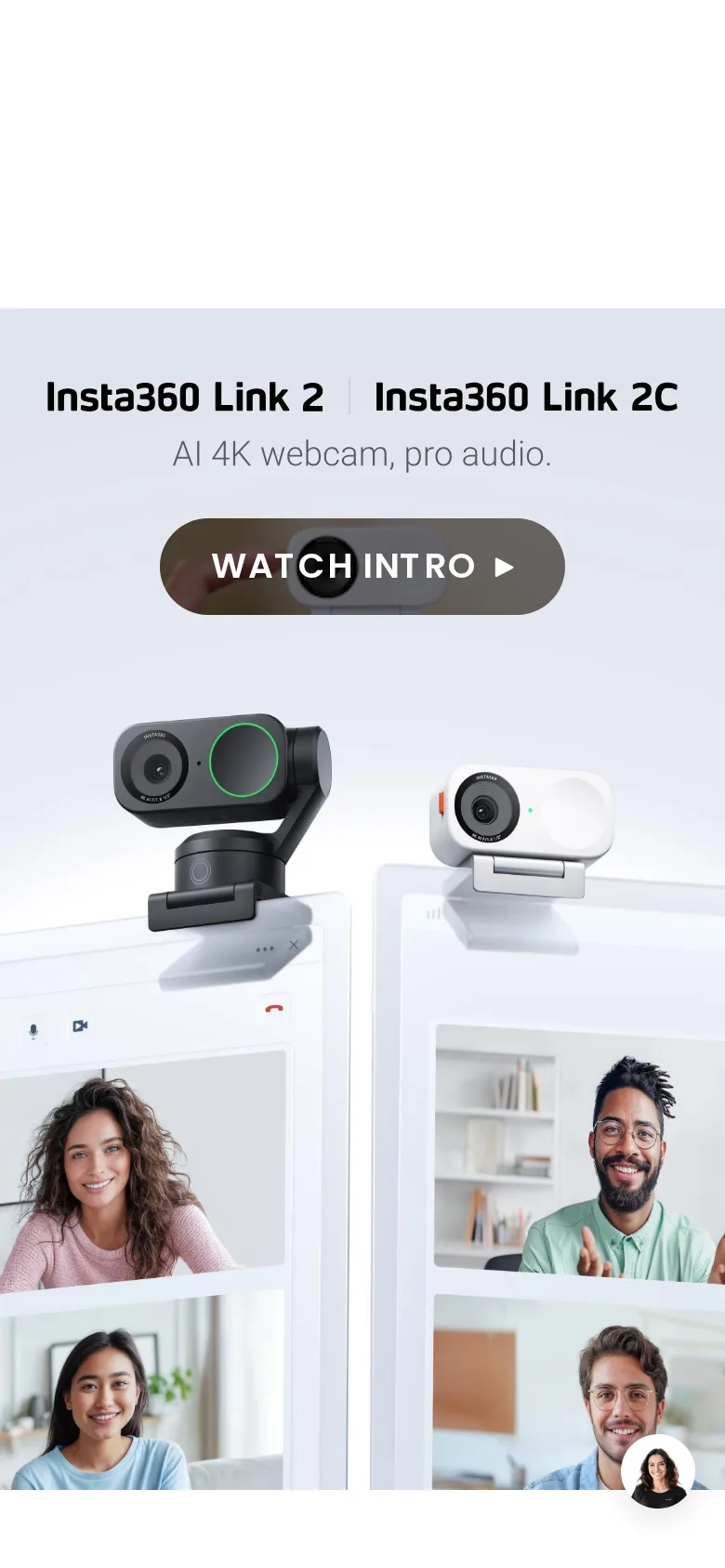
The question to ask yourself
Do you move while you are on camera?
Most desk workers do not. You sit in a chair, you shift a bit, and you stay within a metre of where you started. For that person, a motorised tracking camera is a solution to a problem they do not have, and worse, it introduces a new one: the frame gently drifting as the camera responds to you leaning back.
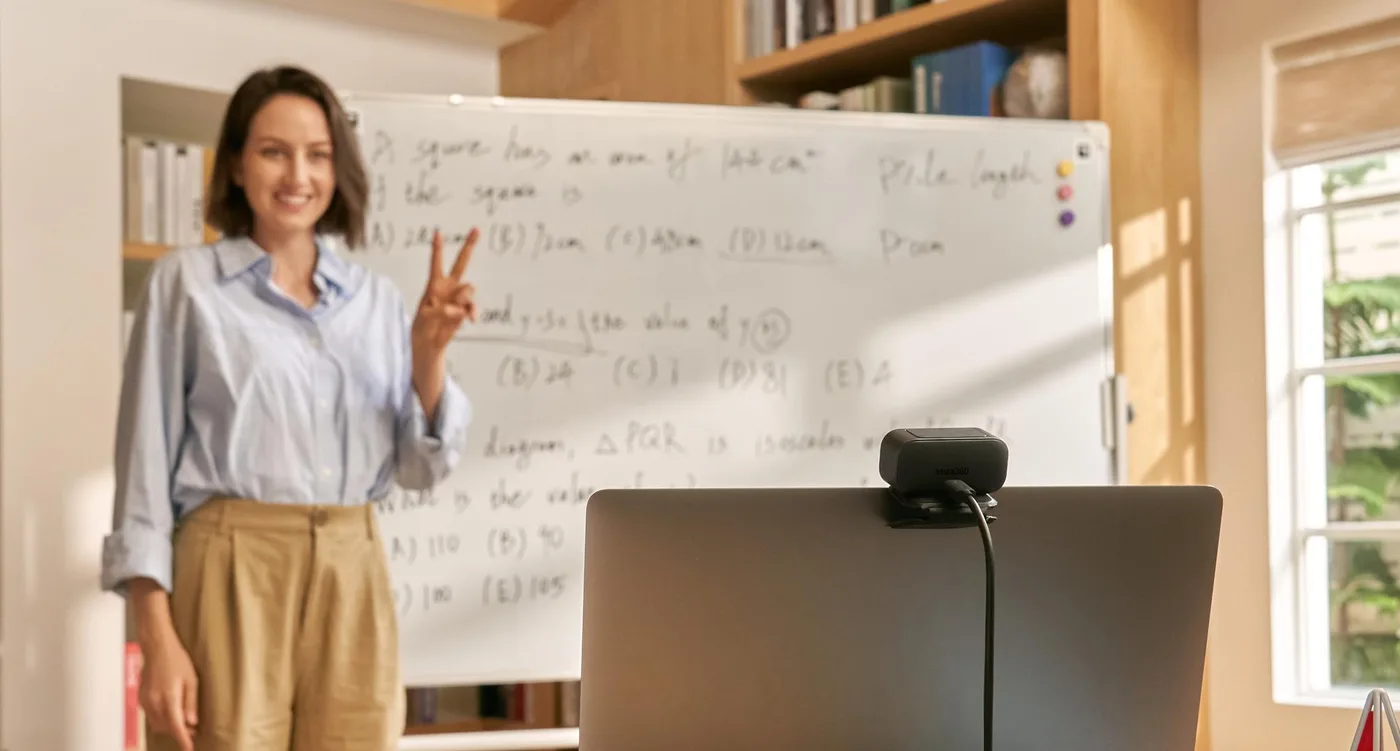
If, on the other hand, you teach, present standing at a whiteboard, demonstrate something at a bench, or run a workshop where you walk around — the Link 2 does something no fixed camera can, and it does it well.
The tracking
A real three-axis gimbal, not a digital crop. The camera physically pans and tilts to keep you in frame, and the motion is smooth and damped rather than jerky. Walk across a room and it follows at a sensible speed; stop, and it settles without overshooting.
It is the best implementation of this idea we have used. Tracking cameras have historically looked like security footage; this looks like a camera operator who is paying attention.
Gesture control turns tracking on and off with a raised palm, and starts or stops a zoom. It works most of the time, which is a higher bar than it sounds for gesture recognition, and it is the right interface — you cannot reach for a keyboard while presenting.
Desk view
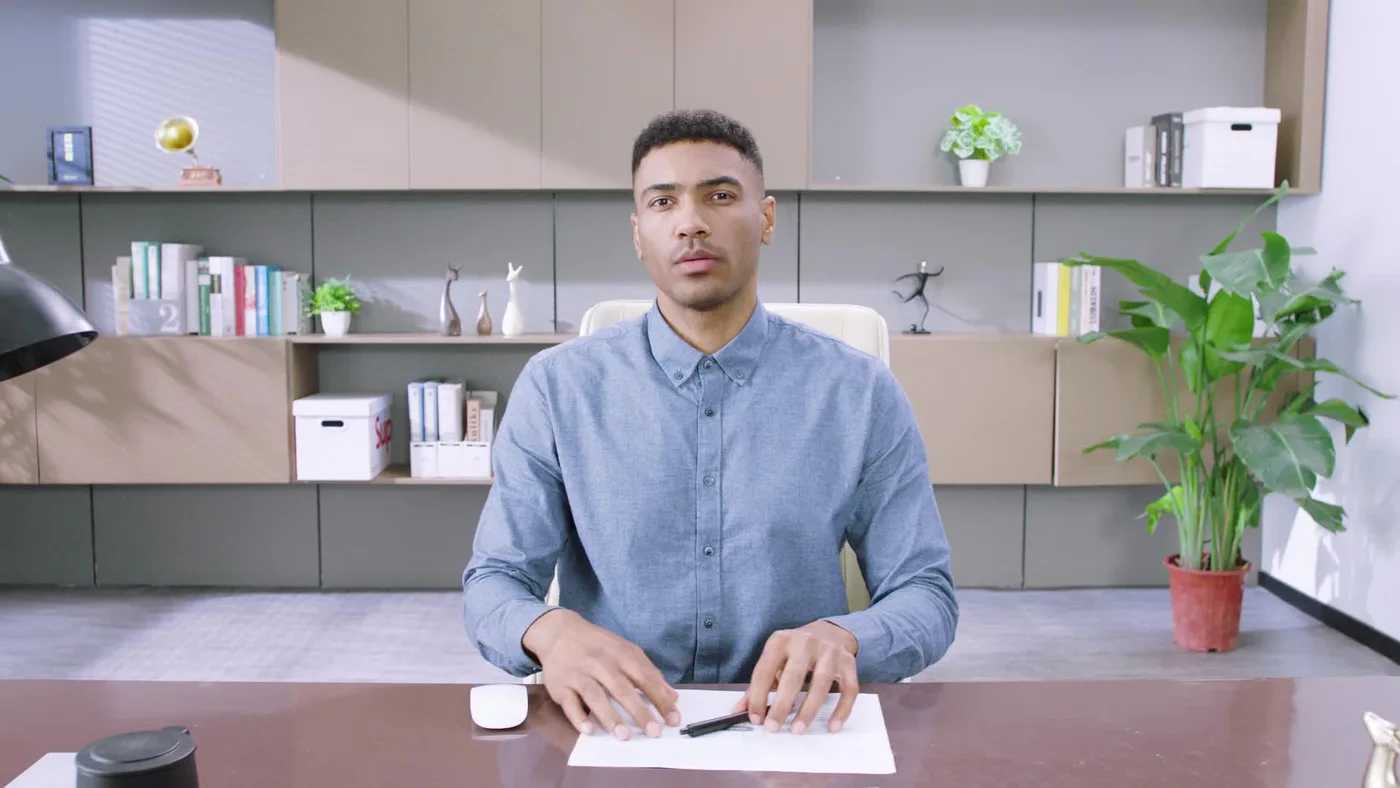
The gimbal can rotate all the way down to point at the desk in front of it, and the software de-skews the image so a sheet of paper looks rectangular rather than trapezoidal.
This is a genuinely excellent feature and it is the one we would actually buy the camera for. Showing a colleague a hand-drawn diagram, a circuit board, a sample, a book page — all of it is normally a comedy of holding things up to a webcam. Here you put the object on the desk and switch mode.
Anyone who teaches anything physical should look at this seriously.
Desk view, in practice
We used it to show a hand-drawn wiring diagram on three separate calls, and the reaction each time was the same: people assumed a second camera was involved.
Switching modes takes a gesture or a click and about two seconds of gimbal movement. The de-skewing is good enough that a sheet of A4 reads as rectangular, and the resolution is sufficient to read normal handwriting from the other end of a call.
The limitation is what fits: roughly a sheet of A4 directly in front of the camera. Something larger, or something to the side of the desk, needs the camera moved.
For teaching anything hands-on — an instrument, a repair, a craft — this is a genuinely better tool than a phone on a stand, and much less faff.
Image quality
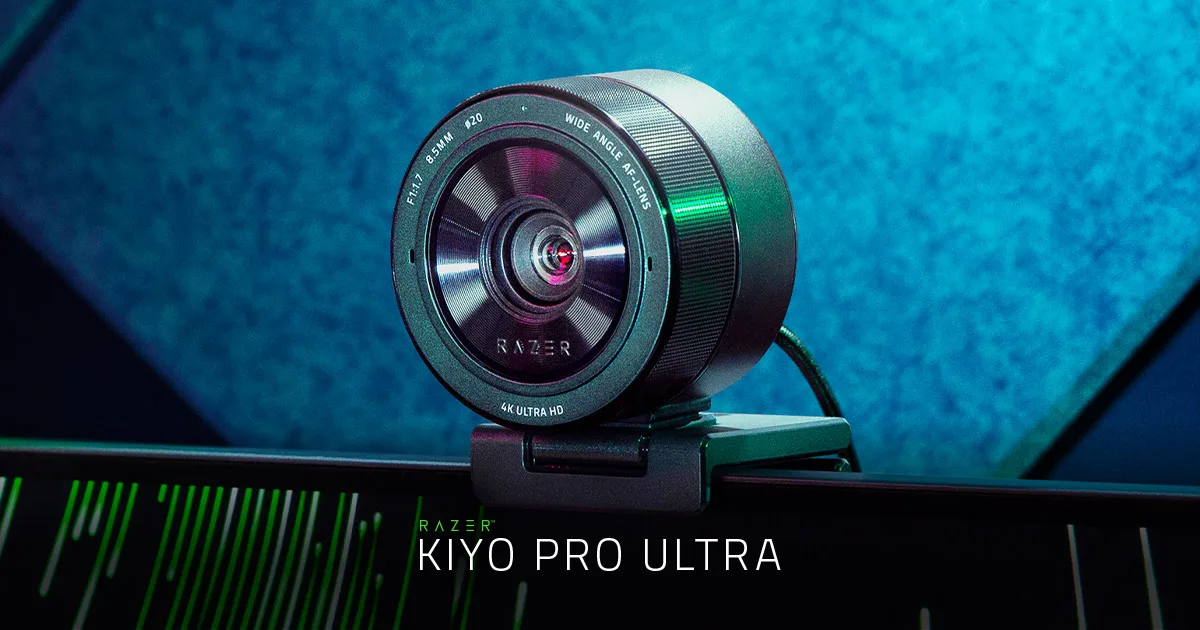
4K sensor, decent in ordinary light, with the usual small-sensor limitations when the room dims. It is better than the Brio and behind the Razer Kiyo Pro Ultra. Colour is neutral, the autofocus is quicker and less prone to hunting than Logitech's, and the automatic exposure is reasonably stable.
Nobody should buy this for image quality alone; the point is what it can do, not how it looks.
Tracking settings that make it usable
Out of the box the tracking is set tight, which means it responds to every small movement and the frame never quite settles.
Loosen it. Most tracking cameras, this one included, offer a sensitivity or a "headroom" setting that defines how far you can move before the camera reacts. Set it so that shifting in your chair does nothing and walking two steps does something.
Turn auto-zoom down or off if you present from one spot. Zoom changes are much more noticeable to viewers than pans, and a camera that keeps reframing reads as restless.
And set a home position. Being able to return the camera to a known framing with one command is the difference between a tool and a toy, and it is the feature people forget exists until they have knocked the camera.
Practicalities
It is tall. The gimbal mechanism sits above the clip, so the camera's centre of mass is high, and on a thin monitor bezel it can be slightly precarious. There is a tripod thread, and on a monitor arm accessory mount or a small tripod it is much happier.
The interesting modes need Insta360's software running. Basic video works as a UVC device without it, but tracking, desk view and gestures do not, and that is a background application on your machine.
Motor noise exists and is audible only if the camera is very close and the room is silent.
Verdict
7.7. An excellent tool for a specific job, priced above cameras that take a better picture for the more common job. Buy it for what it does, not for how it looks.
What holds up
- The gimbal tracking is smooth and genuinely keeps you framed while you move
- Overhead desk-view mode is excellent for showing physical objects
- Gesture control works reliably enough to be usable mid-presentation
- 4K sensor is decent in average light
What wears thin
- Tracking is a distraction if you sit still — the frame drifts as you shift
- Motors and gimbal make it tall and front-heavy on a thin monitor
- Needs Insta360's software for the interesting modes
- More expensive than fixed cameras that look as good or better